
Super HomeScreen review
 Analysis by GetAllApps
I like a home screen that helps me decide what to do next without making me dig through folders. Super HomeScreen is a personalization app built around that idea: it aims to put useful information and everyday essentials within easy reach, rather than turning the phone into a showpiece that takes time to manage. The appeal is practical, but whether that approach suits you depends on how much you want your launcher to change your routine.
A home screen built for quick checks
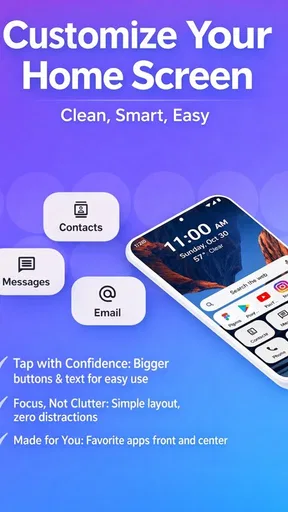
At its core, Super HomeScreen is an alternative launcher: the part of an Android phone that presents the home screen and gives you a route into your apps. Its focus is speed and information, so I would approach it as a tool for reducing small bits of friction—finding an app, checking what matters, and getting on with the task—rather than as a promise of dramatic visual customization.
That distinction matters. Many launchers compete through elaborate themes, icon packs, or deep layout controls. This one makes more sense for someone who wants a home screen to be useful at a glance. I would not choose it solely because I wanted a radically different look; I would consider it if the default screen feels like a passive grid and I want a more purposeful starting point.
The app is free, which makes trying that approach relatively straightforward. I see the price as a reason to test it, not proof that it will suit every phone or every routine. A launcher becomes part of muscle memory, so the real value is whether its layout helps you reach your regular tasks with less effort after the novelty of switching wears off.
What “at a glance” is useful for
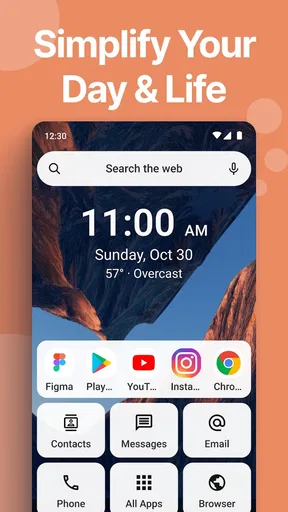
The strongest use case is the brief check between activities. Imagine leaving home in the morning: you unlock your phone to open a travel app, check a message, or move to a calendar task. A launcher centered on essentials can make that first stop feel more deliberate than swiping through several screens or searching a crowded app drawer. The benefit is small each time, but it can add up when repeated throughout the day.
There is also a useful distinction between information you glance at and information you need to act on. A home screen should make the first easy without burying the second. When trying Super HomeScreen, I would keep the most frequently used actions close and judge the layout by whether I can move from a quick check into the relevant app without hesitation. If the screen looks informative but makes common actions harder to spot, it is not doing its job.
One practical tip is to evaluate it with a short, consistent routine rather than rearranging everything immediately. Pick a handful of actions you perform often, such as opening messages, checking a schedule, or launching navigation. Use the launcher for those first, then notice where your thumb goes and what you have to search for. That reveals more than spending the first session polishing a layout you may not actually use.
Cost and the value of trying it
Super HomeScreen is free, so there is no purchase decision to weigh before giving its central idea a fair test. The more important cost is the time involved in switching: setting a new home screen as your default, rebuilding familiar habits, and deciding whether its approach makes daily use smoother. I would treat that adjustment as part of the trial, not as a reason to expect instant improvement.
For context, the app has a 4.0 average from around 5,600 ratings, with 342 written reviews. It has also passed one million installs. Those figures suggest that many people have tried it, but they cannot tell me whether its particular way of presenting essentials fits your screen, your preferred layout, or your habits. My own decision would still come down to a hands-on check of the tasks I repeat most.
The age rating is Everyone, and the app is developed by lighten apps. It was released on August 28, 2025, and version 3.2.7 is the current version. It requires Android 8.0 or later, so the first useful check is simply whether your device meets that requirement. If it does, the no-cost entry point makes experimentation more appealing; if you are already happy with your existing launcher, there is no need to switch just because this one is available.
The tradeoff: less clutter can mean less control
A focused launcher has to make choices about what deserves attention. That can be a strength when your current screen is busy, but it also means its priorities may not match yours. Someone who wants extensive control over every icon, gesture, animation, and page may prefer a launcher known primarily for customization. Super HomeScreen’s stated emphasis is efficiency and information, so I would not assume that it offers the same depth of visual tweaking as those alternatives.
There is a second tradeoff: a glanceable screen can become another place to look. If you already rely on notifications, widgets, and an organized app grid, a more information-oriented home screen may duplicate what you see elsewhere. In that case, it could add visual competition rather than reduce it. I would be selective about what I expect the screen to do and avoid treating every available space as something that needs filling.
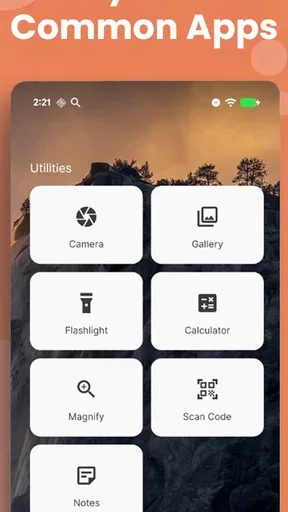
Another point worth testing is how well the layout holds up when your day changes. A screen optimized around a stable set of routines is easy to learn; a screen that becomes awkward whenever you need an occasional app can slow you down. Keep a few less-frequent tools easy to find as well as your daily essentials. That balance helps prevent a tidy first page from turning into extra searching elsewhere.
How it compares with familiar launcher choices
The default launcher is usually the simplest alternative: it is already there, and you may know its layout by heart. If it gets you to the right apps quickly, changing launchers may offer little practical gain. Super HomeScreen is more compelling when your default screen feels like an app shelf and you want the starting point to serve a clearer informational purpose.
At the other end are customization-heavy launchers, which appeal to people who enjoy tuning the phone’s appearance and behavior. Those can be a better fit if building a distinctive layout is itself part of the fun. Super HomeScreen is worth considering instead when you care more about getting a useful overview than spending time on visual adjustments. Neither approach is universally better: one prioritizes personal control, while this app’s pitch is a more efficient, information-focused home screen.
I would also compare it with the habits you already use, not just with other apps. If you reach for search every time, try to see whether the new home screen makes common destinations easier to access than search does. If you rely on folders, check whether the app’s overall approach complements them rather than forcing you to abandon a system that works. A launcher earns its place by fitting into behavior, not by making you relearn everything for its own sake.
Who is likely to get the most from it
I would recommend giving it a try if you regularly unlock your phone for brief checks and want your home screen to feel more useful between app sessions. It may particularly suit someone who prefers a functional first screen, has a stable set of everyday tasks, and does not want customization to become a hobby. Because it is free, the decision can be based on whether the workflow feels right rather than on a purchase commitment.
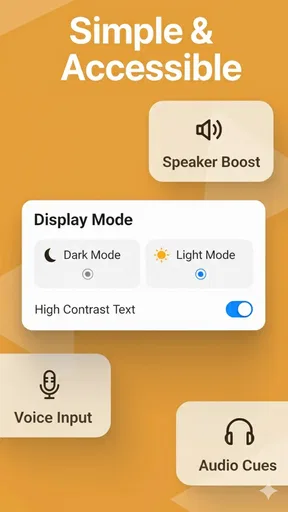
I would be more cautious if you are attached to a highly customized setup, depend on a familiar default launcher for accessibility or muscle memory, or want a home screen that is deliberately minimal and shows as little as possible. It is also not an obvious choice for someone whose main goal is cosmetic personalization. In those situations, the standard launcher or a customization-first alternative may match your priorities better.
For a useful trial, leave your existing setup in mind and test the new one against actual tasks: reach the apps you open most, make a quick check, then return to what you were doing. Notice whether the first screen reduces steps or merely changes where the same clutter appears. If you have to keep stopping to remember where something moved, give yourself time to adjust—but do not mistake the learning curve for value if the layout still feels inconvenient after repeated use.
My verdict on switching
Super HomeScreen makes the most sense as a practical experiment for Android users who want their home screen to do more than hold icons. Its focus gives it a clear identity, and free access lowers the barrier to finding out whether that identity suits your routine. I would not call it an automatic upgrade over a launcher you already like, and I would not choose it for customization alone.
My recommendation is to try it when your current home screen makes everyday access feel scattered. Give it a fair run with a few familiar tasks, keep the layout focused, and judge the experience by how naturally you can get where you need to go. If it turns those repeated checks into a smoother habit, it offers worthwhile value at no cost. If it adds another layer to manage or gets in the way of your established setup, switching back is the sensible choice.
Pros and cons
Pros
- Keeps useful shortcuts close at hand for quicker access.
- Offers a more personalized look than a standard home screen.
- Can help make frequently used apps easier to find.
- Adds a fresh visual style to the device interface.
- Provides an alternative for users seeking a different launcher experience.
Cons
- May take time to adjust to its layout and controls.
- Some features may vary depending on the Android version.
- Could require extra permissions for certain functions.
- Custom layouts may need setup after changing devices.
- Compatibility may differ across phone models.


